
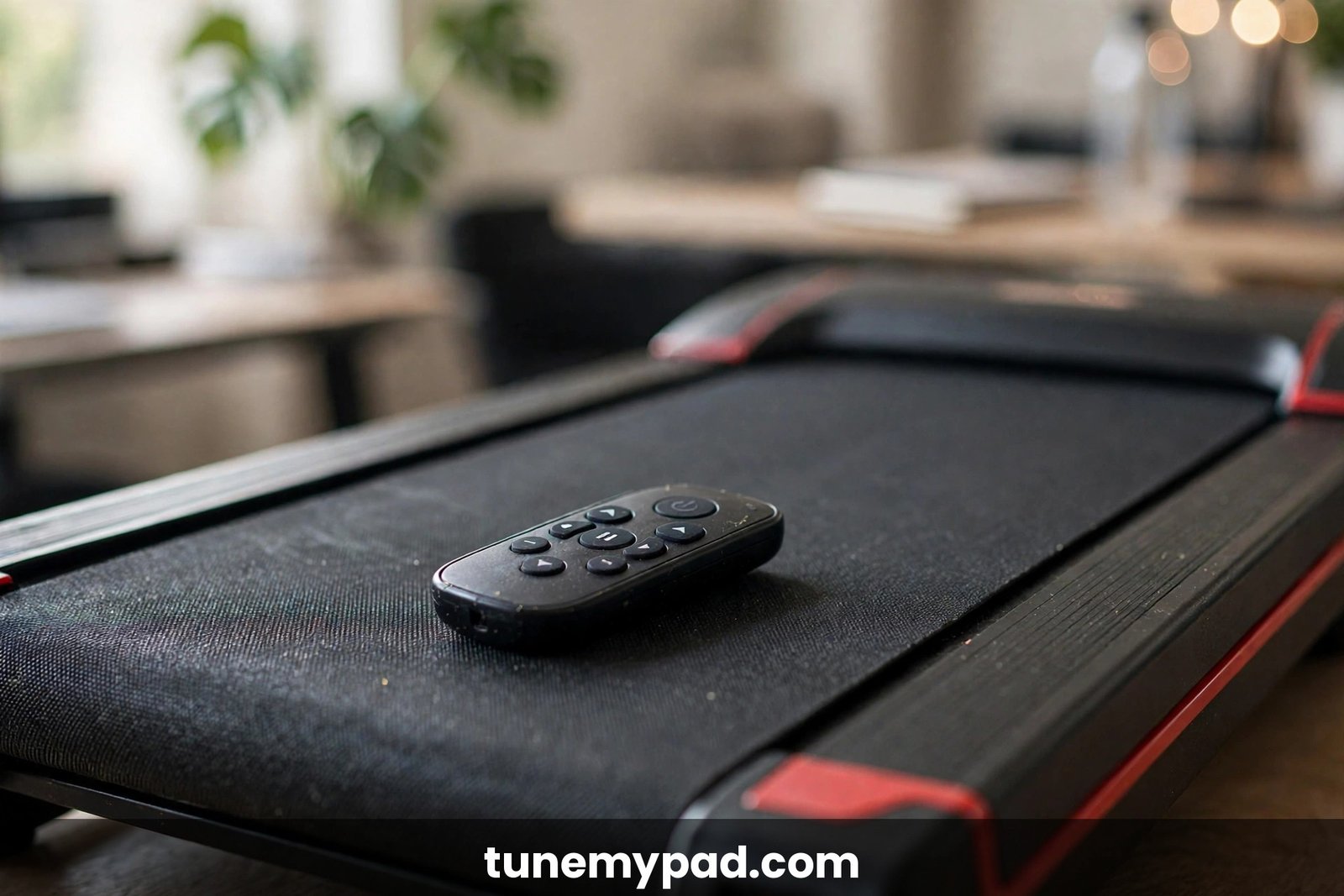
A DeerRun remote not pairing is the most common complaint owners of the BA04, BA05, Q1 Urban, and DR2-CT models run into — the walking pad powers up perfectly, but the remote appears completely dead. The good news is that this is almost never a broken remote. It’s usually a dropped pairing link or a tired battery, and both take minutes to fix.
DeerRun pads use a wireless RF remote rather than Bluetooth, so the fix is a short re-pairing ritual: you hold the remote’s power button while switching the machine on, and a beep plus “00:00” on the display confirms the two are talking again. Below is the exact sequence with timings, plus everything to check when it doesn’t work the first time.
Quick Answer: DeerRun Remote Not Pairing in 30 Seconds
| Question | Answer |
|---|---|
| Why won’t my DeerRun remote pair? | The wireless link between the remote and the pad has dropped. Re-run the hold-during-power-on sequence below — it resolves the problem in most cases. |
| What’s the exact pairing sequence? | Switch the pad OFF at its main power switch. Hold the remote’s power button. While still holding, flip the pad’s power switch ON. When you hear a beep and the display shows 00:00, release the button. |
| Could it just be the battery? | Yes. DeerRun remotes run on a CR2025 coin cell. If your remote is months old, swap in a fresh battery with the “+” side facing up before re-pairing. |
| Can I control the pad without the remote? | Yes — the free PitPat app pairs over Bluetooth and controls start/stop and speed, so you’re never stuck while you sort the remote out. |
| When should I buy a replacement? | If a fresh battery plus two careful re-pair attempts still fail, the remote itself has likely failed. Third-party replacements list compatibility with the BA04, BA05, Q1 Urban, and DR2-CT. |
Why Your DeerRun Remote Stops Pairing
Nine times out of ten, the remote isn’t broken — it’s just disconnected or starved of power. The usual causes:
- Dropped pairing link. The pad can “forget” the remote after long storage, a power cut, or a static discharge. The fix is simply to pair again.
- Dead or weak CR2025 battery. A weak battery may light the remote’s button just enough to look alive while transmitting too weakly to register.
- Poor battery contact. The small metal contacts inside the remote can shift or corrode, so the battery sits loose even when new.
- Interference or distance. Another wireless device nearby, or standing too far from the pad’s receiver during pairing, can break the handshake.
Fix 1: Check the Battery and Its Contacts
Do this before anything else — it takes two minutes and eliminates the most common cause.
- Slide or pry open the back cover of the remote.
- Remove the CR2025 coin cell and check it. If you’ve been using it for several months, replace it with a brand-new one.
- Install the battery with the “+” (positive) terminal facing up.
- Look at the small metal contacts inside the battery compartment. If they look flattened or pushed aside, gently bend them back so they press firmly against the battery.
- Close the cover and try pressing the power button. You should hear a beep from the pad when it’s paired — if not, move on to the re-pairing sequence.
Fix 2: Run the Official Re-Pairing Sequence
This is the pairing method DeerRun prints in its BA04 user manual and other walking pad models. Follow it exactly — order and timing matter.
- Flip the main power switch on the walking pad to OFF (it’s at the front of the machine, not on the remote). Wait about 10 seconds so the controller fully resets.
- Stand within a couple of feet of the pad’s display — close range helps the handshake.
- Press and hold the power button on the remote. Keep your finger on it.
- While still holding the button, flip the pad’s main power switch to ON.
- Listen for a beep and watch the display. When you hear the beep and see “00:00” on the screen, release the remote button. Pairing is complete — the remote should now start, stop, and change speed.
Timing notes: the beep usually lands 2–5 seconds after you switch the pad on. If nothing has happened by about 10 seconds, switch the pad off and repeat the whole sequence once more. Two clean attempts settle it: if it works, great; if not, move to interference checks.
Model variation: on some DeerRun 2-in-1 models the sequence is reversed — turn the machine on first, wait until the display shows “0:00”, then press and hold the “+” button on the remote for 5 seconds until you hear the beep. If the standard sequence fails on your model, try this variant.
Fix 3: Rule Out Range and Interference
If the remote still won’t pair with a fresh battery:
- Get closer. Pair within 1–2 meters of the pad with a clear line of sight to the display end, where the receiver lives.
- Move other wireless remotes away. Ceiling-fan remotes, other treadmill remotes, or RF gadgets in the same room can collide with the signal.
- Clear the path. Don’t pair with the remote inside a pocket, under the desk, or behind large metal objects.
- Retry the sequence again after a full power cycle. Switch the pad off, unplug it for 30 seconds, plug it back in, and run the pairing sequence once more.
Fix 4: Make Sure the Pad Itself Isn’t the Problem
Sometimes the remote is fine and the pad isn’t listening.
- Check that the display lights up when you flip the power switch. A dark display means a power problem (cord, outlet, switch) — not a remote problem. See our DeerRun troubleshooting hub for power fixes.
- During the pairing attempt, the beep is the handshake. No beep and no “00:00” after two attempts with a fresh battery points to a faulty receiver or controller board on the pad — that’s a support case, not a remote case.
- If the display shows an error code instead (like E01 or E02), fix that first: E01 communication fault or E02 motor/wiring fault.
The PitPat App: Your Backup Remote
Every DeerRun walking pad also talks to the PitPat app over Bluetooth — and the app works even when the physical remote won’t. While you’re troubleshooting the remote:
- Download PitPat from your phone’s app store (it’s free).
- Enable Bluetooth on your phone and stand next to the pad.
- Open the app and let it discover and connect to your walking pad.
- Use the app to start, stop, and adjust speed — full remote replacement for your workout.
The app also logs your workouts and unlocks training programs, so it’s worth setting up even after the remote is working again. If the app also fails to find the pad, that’s another clue the pad’s electronics (not the remote) need attention — covered in our DeerRun troubleshooting hub.
Replacement Remotes: What Fits DeerRun
If a fresh CR2025 and two proper re-pair attempts still give you silence, the remote itself has likely failed. When shopping for a replacement:
- Match your model: common listings cover the DeerRun BA04, BA05, Q1 Urban, and DR2-CT.
- Aftermarket remotes (for example the PZL replacement remote) list these DeerRun models explicitly — check the compatibility list before buying.
- A new remote still needs the same pairing sequence above, so keep these steps handy.
- Contact DeerRun support if your pad is under warranty — the BA04 carries a 1-year warranty, and a dead remote may qualify for a free replacement.
Safety: When to Stop and Unplug Immediately
Stop using the walking pad, unplug it, and escalate to DeerRun or a technician if you notice any of these — they are not remote issues:
- A burning smell, smoke, or a hot plastic odor from the motor area
- Sparks or arcing near the power switch, cord, or motor cover
- The motor area getting repeatedly hot to the touch or the pad shutting down from overheating
- A damaged power cord or a power switch that feels loose or crackles
Don’t attempt internal repairs on the controller or motor yourself; the capacitors inside hold charge even when unplugged.
DeerRun Remote FAQs
How long does DeerRun remote pairing take?
About 15 seconds total. The hold-during-power-on step takes 2–5 seconds before the confirmation beep; if you hear nothing by 10 seconds, stop and retry.
Does the DeerRun remote use Bluetooth?
No — the physical remote is a wireless RF remote, which is why the pairing ritual involves the pad’s power switch rather than a Bluetooth menu. Bluetooth on a DeerRun pad is only used for the PitPat app connection.
What battery does the DeerRun remote use?
A CR2025 coin cell, installed with the “+” terminal facing up. Replace it when responsiveness drops or the remote stops working.
Why does my remote work only sometimes?
Intermittent response usually means a weak battery, loose battery contacts, or interference from another wireless device. Replace the battery, re-seat the contacts, and re-pair at close range.
Do I have to re-pair after every power-off?
No. Once paired, the link is remembered even when you switch the pad off. Re-pair only if the remote stops responding again.
Can I use two remotes on one DeerRun pad?
Only one remote is paired at a time. Pairing a second remote replaces the first — they can’t both control the pad simultaneously.
The beep happened but the buttons still do nothing — what now?
The RF link paired, but the pad may not be accepting commands because of an underlying fault. Check the display for an error code (E01, E02, or E05) and work through the full DeerRun troubleshooting guide.
Conclusion
A DeerRun remote not pairing is rarely the end of the story — a fresh CR2025 battery and the hold-during-power-on sequence (beep plus “00:00” means success) fix it in the vast majority of cases. Keep the PitPat app installed as a backup controller, and if the remote still stays silent after two clean attempts, suspect the remote hardware or the pad’s receiver and contact support.
For the bigger picture on your machine, see the DeerRun Walking Pad Troubleshooting Guide, or jump straight to the Goplus troubleshooting hub or CITYSPORTS troubleshooting hub if you’re comparing brands. The steps above follow the procedures in DeerRun’s official walking pad manual.