
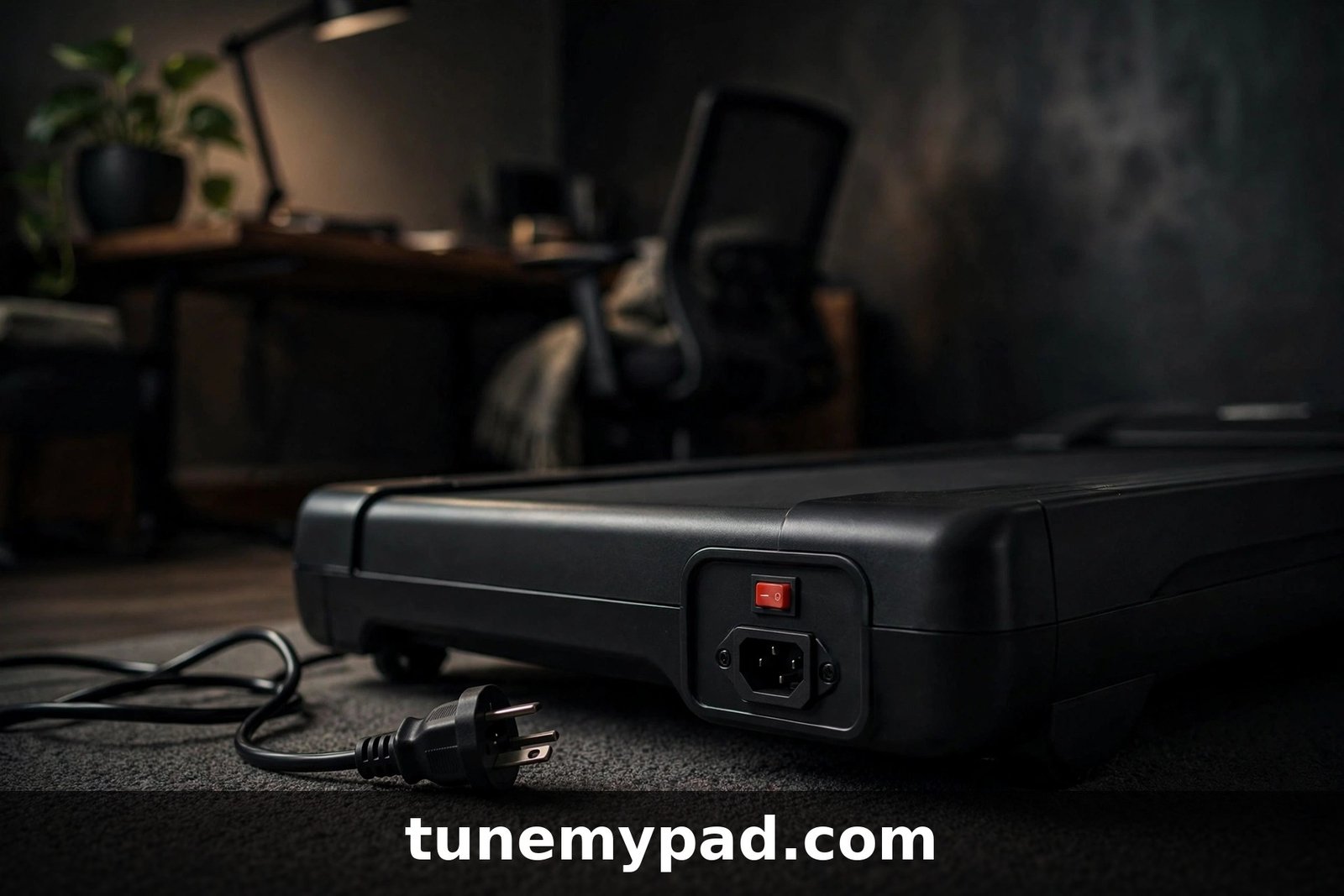
You press the power button and… nothing. No beep, no display, no belt movement. A walking pad that won’t turn on at all is frustrating, but the cause is usually in the power chain — and the power chain is the easiest part of the machine to test. Most no-power problems are fixed in under ten minutes with zero tools.
This guide works from the wall outlet inward: each step rules out one link in the chain until you find the broken one. It covers the difference between “dead display” and “display works but nothing moves,” which points you at completely different fixes.
Quick Answer: Walking Pad Won’t Turn On
| Question | Answer |
|---|---|
| What’s the most common cause? | The pad isn’t actually getting power — a tripped breaker, loose cord, or dead outlet. Test the outlet with another device first. |
| Display works but belt won’t move? | That’s a different problem (control/safety circuit). See our beeping-but-not-starting guide. |
| Should it be on an extension cord? | No — always plug directly into a wall outlet. Extension cords are a leading cause of power problems. |
| Could it be the fuse? | Yes — many pads and their plugs have a replaceable fuse; a blown fuse gives a completely dead unit. |
| What if nothing in the checklist works? | The fault is likely internal (switch, wiring, or control board) — contact the manufacturer or a technician. |
| Is it safe to open the unit? | Only if unplugged, and opening the housing usually voids the warranty — check warranty status first. |
Step 1: Confirm the Outlet Actually Has Power
This sounds too simple to be the answer, but it’s the answer often enough that every troubleshooting guide starts here.
- Unplug the walking pad from the outlet.
- Plug in something you know works — a phone charger, a lamp, a hair dryer. If it doesn’t power up either, the outlet is dead.
- Check your home’s breaker panel for a tripped breaker, and check any GFCI outlets (bathrooms, kitchens, garages) for a tripped reset button — walking pads are often used near these.
- Try the pad in a different outlet on a different circuit.
If the outlet is dead and the breaker keeps tripping when you plug the pad in, the pad may have an internal short — do not keep resetting the breaker; move to the safety section at the end.
Step 2: Inspect the Power Cord
A damaged cord is both a cause of no-power and a fire hazard, so look carefully:
- Run the full length of the cord through your hands (unplugged). Feel for kinks, flat spots, nicks, exposed wire, or sections that feel stiff or melted.
- Check both ends — the plug prongs (bent? loose? discolored?) and the socket where the cord enters the pad (firmly seated? cracked housing?).
- Smell the plug and the pad’s power inlet. A burnt-plastic smell means something arced — stop and contact the manufacturer.
- If your model has a detachable cord (many do — it’s a standard IEC “kettle” plug), try a known-good cord from another appliance to rule the cord out completely.
If you find any damage, don’t tape it and hope — replace the cord. Cords are cheap; electrical fires are not.
Step 3: Check the Rocker Switch and Fuse
Most walking pads have a red rocker switch near the power inlet, and many have a fuse in the same area (sometimes inside the plug itself on UK models).
- Flip the rocker switch fully to OFF, then firmly back to ON. A half-seated switch can look on while making no contact.
- If the switch has a built-in indicator light, it should glow when ON and plugged in. No glow = no power reaching the switch (go back to Steps 1–2).
- Locate the fuse: it’s often a small cylinder in a pull-out holder next to the rocker switch, or inside the plug. Check your manual for the exact location.
- Remove the fuse and hold it up to the light. If the wire inside is broken or the glass is blackened, the fuse is blown — replace it with one of the exact same rating (printed on the fuse cap, e.g., 5A 250V).
- If the new fuse blows immediately, the pad has an internal electrical fault. Do not put in a higher-rated fuse — that’s how fires start.
Step 4: Re-Seat the Safety Key
Here’s a quirk that catches people: on many walking pads, the safety key doesn’t just stop the belt — the control circuit needs it present before the display will even power up properly. A missing or poorly seated key can make the pad look completely dead.
- Remove the safety key entirely.
- Wipe the magnetic contact and its socket with a dry cloth.
- Place it back firmly, making sure it sits flat and centered.
- Try powering on again.
If the pad springs to life, the key was the problem. If the magnet is weak or the key is cracked, order a replacement from the manufacturer — they’re inexpensive and model-specific.
Step 5: Figure Out What’s Actually Dead — Display vs. Motor
“Not turning on” covers two different failures, and the fix depends on which one you have:
| Symptom | What it means | Next step |
|---|---|---|
| Nothing at all — no lights, no beep, no display | No power reaching the control board | Re-check Steps 1–4; suspect internal wiring or board failure |
| Display lights up but belt won’t move | Power is fine; safety/start circuit is blocking | Check safety key, child lock, app connection, error codes |
| Display lights up, pad beeps, but belt won’t start | Start command isn’t reaching the motor | See beeping but not starting |
| Display flickers or dies when you press start | Power supply sags under load | Extension cord or weak outlet — plug into a dedicated wall outlet |
| Pad turns on only sometimes | Intermittent connection | Wiggle-test the cord and switch (gently); suspect a loose internal connector |
The flickering-display case deserves emphasis: if the display dies the instant the motor tries to start, the power supply can’t handle the load. This is the classic symptom of running through an extension cord or a worn outlet — the voltage drops when current demand spikes, and the electronics brown out.
Step 6: The 60-Second Hard Reset
Electronics sometimes lock up in a fault state that a normal power cycle doesn’t clear:
- Turn the rocker switch OFF.
- Unplug the pad from the wall.
- Remove the safety key.
- Wait a full 60 seconds (this lets the control board’s capacitors fully discharge).
- Re-seat the safety key, plug back into the wall outlet directly, switch ON.
If the pad was stuck in a protective shutdown — for example after an overload event — this often brings it back. If it powers up and then immediately dies again, note any error code on the display and look it up in our error code guides.
Step 7: Check the Remote and App
Some walking pads won’t respond to the power button if they’re in a confused wireless state:
- If your pad has a remote, check its battery — a dead remote can make a working pad seem dead. Replace the CR2032 (or whatever your model uses).
- Try starting the pad from the app instead of the remote/button, and vice versa.
- If the pad connects to Bluetooth but won’t start, unpair it in your phone’s Bluetooth settings, then re-pair fresh.
- Check for a “child lock” feature in the app — when engaged, it disables the controls entirely, which looks exactly like a dead unit.
Related: remote not working and app not connecting.
Brand-Specific Notes
The checklist above is universal, but a few brand quirks are worth knowing:
- Urevo: Several models show no signs of life if the power adapter brick isn’t fully seated — push it in until it clicks. See also our Urevo treadmill not starting guide.
- Umay: The power switch on some Umay models is on the underside/front edge where it’s easy to bump OFF during storage. See our Umay walking pad won’t start guide.
- WalkingPad (KingSmith): Foldable models sometimes won’t power on if the deck isn’t fully unfolded and locked — the frame sensor blocks startup. Unfold completely until you hear/feel the lock engage.
- Sperax/CitySports/DeerRun: Check for a small reset hole or recessed button near the power inlet; hold it for 5 seconds with a paperclip while plugged in. See the Sperax and DeerRun troubleshooting guides.
Safety Stop-Points: When “Won’t Turn On” Means “Don’t Touch”
Stop troubleshooting and unplug the pad if you find:
- Burnt smell from the plug, cord, switch, or motor area.
- Scorch marks or melted plastic on the plug, outlet, or power inlet.
- A fuse that blows repeatedly — this means a short circuit inside the unit.
- A breaker that trips every time the pad is plugged in.
- A cord that is warm, stiff, or sticky anywhere along its length.
These indicate an electrical fault that can start a fire. Do not bypass the fuse, do not use a higher-rated fuse, and do not keep resetting the breaker. Contact the manufacturer or a qualified electrician/technician.
Walking Pad Not Turning On FAQs
Why is my walking pad not turning on even though it’s plugged in?
“Plugged in” and “receiving power” aren’t the same thing. Verify the outlet with another device, inspect the cord, confirm the rocker switch is fully ON, check the fuse, and re-seat the safety key. Nine times out of ten, one of those five is the answer.
Can an extension cord stop a walking pad from turning on?
Yes — long or thin extension cords cause voltage drop, and surge-protector strips can trip or limit current. Walking-pad manufacturers universally recommend plugging directly into a wall outlet. If your setup requires distance from the outlet, have an electrician add an outlet rather than extending the cord.
How do I know if the fuse is blown?
Remove the fuse (usually in a holder by the rocker switch or inside the plug) and look through it: a blown fuse has a broken or melted internal wire, sometimes with blackened glass. Replace only with the identical rating printed on the fuse. If the replacement blows immediately, the unit has an internal short — stop and get professional help.
The display turns on but nothing happens when I press start — is that the same issue?
No — that’s a control-circuit problem, not a power problem. Power is clearly reaching the unit. The usual suspects are the safety key, a child lock, an app/Bluetooth glitch, or an error code blocking startup. Our beeping-but-not-starting guide covers exactly this.
My walking pad worked yesterday and is dead today. What changed?
Overnight failures usually trace to the power chain: a tripped GFCI or breaker, a cord that got pinched when the pad was moved or folded, a safety key knocked loose during storage, or a surge that blew the fuse. Work the checklist top to bottom — the “it worked yesterday” cases are almost always Steps 1–4.
Should I open the motor cover to check the wiring?
Only if the pad is unplugged, you’re comfortable with basic electronics, and — critically — it’s out of warranty. Opening the housing on a unit under warranty usually voids it. For in-warranty pads, a dead unit with verified-good power is exactly what warranty service is for: contact the manufacturer with your checklist results.
Conclusion
A walking pad that won’t turn on is a power-chain problem until proven otherwise: outlet, cord, switch, fuse, safety key — in that order. The 60-second hard reset clears the electronic edge cases, and the display-vs-motor distinction tells you whether you’re chasing a power fault or a control fault. If the display works but the belt won’t budge, continue with our beeping-but-not-starting guide or the brand-specific Urevo and Umay startup guides. External references used: TPA10’s walking pad troubleshooting guide (power-problem section), TroubleshootingLab’s startup-failure checklist, and the WalkingPad brand manual’s general troubleshooting table (via files.bbystatic.com).