
Joining a Zoom call from a treadmill desk feels like a magic trick: you are walking at 2 miles per hour, getting your steps in, while looking perfectly still and professional on camera. The catch is that using a treadmill desk on video calls only looks effortless when you have done the setup work first. Camera bounce, treadmill hum on the microphone, and that faintly sea-sick feeling your colleagues get watching you bob up and down — these are all solvable problems with the right videoconferencing setup.
This guide covers using a treadmill desk on video calls the right way: the 7 tips that keep you looking and sounding professional while walking, the camera and audio setup that hides the motion, when to pause the belt, and the etiquette rules that keep colleagues from resenting your step count. Whether you live on Zoom, Teams, Meet, or all three, these tips make walking meetings a feature instead of a distraction.
Table of Contents
Quick Answer: Using a Treadmill Desk on Video Calls
| Question | Answer |
|---|---|
| Can you use a treadmill desk on video calls? | Yes. At 1–1.5 mph with a stable camera, noise-suppressing mic, and good framing, nobody can tell you are walking. |
| Does the treadmill noise get picked up on calls? | It can, but a headset mic with noise suppression plus a lubricated, well-maintained belt keeps it inaudible in practice. |
| Will colleagues notice you moving? | Only if your camera shakes or your head bobs. A tripod-mounted or monitor-mounted camera at eye level eliminates visible motion. |
| Should you tell people you are walking? | Mention it once, lightly, at the start of a relationship — then let it become invisible. Do not announce it every call. |
| When should you stop the belt on a call? | For presentations you are delivering, job interviews, performance reviews, and any moment where precision or gravitas matters more than steps. |
Why Using a Treadmill Desk on Video Calls Needs a Strategy
Walking is a gross motor activity; video calls demand fine presentation. The two can coexist, but three failure modes make using a treadmill desk on video calls go wrong:
- Visual motion. Your head bobs a centimeter or two with every step. On a shaky laptop webcam it looks like you are riding a bus. Viewers unconsciously mirror your instability and rate you as less composed.
- Audio artifacts. Treadmill motors hum at 50–70 dB up close. Built-in laptop microphones sit right above the desk and pick up belt noise, foot thumps, and fan whir. Colleagues may not identify the sound, but they will say you sound “far away” or “echoey.”
- Cognitive split. Talking while walking divides attention. For casual standups this is fine — walking can even make you more articulate. For high-stakes persuasion or rapid-fire Q&A, the split shows: longer pauses, more filler words, weaker arguments.
The good news: each failure mode has a concrete fix. The 7 tips below address them in order of impact.
Tip 1: Stabilize Your Camera (The Highest-Impact Fix)
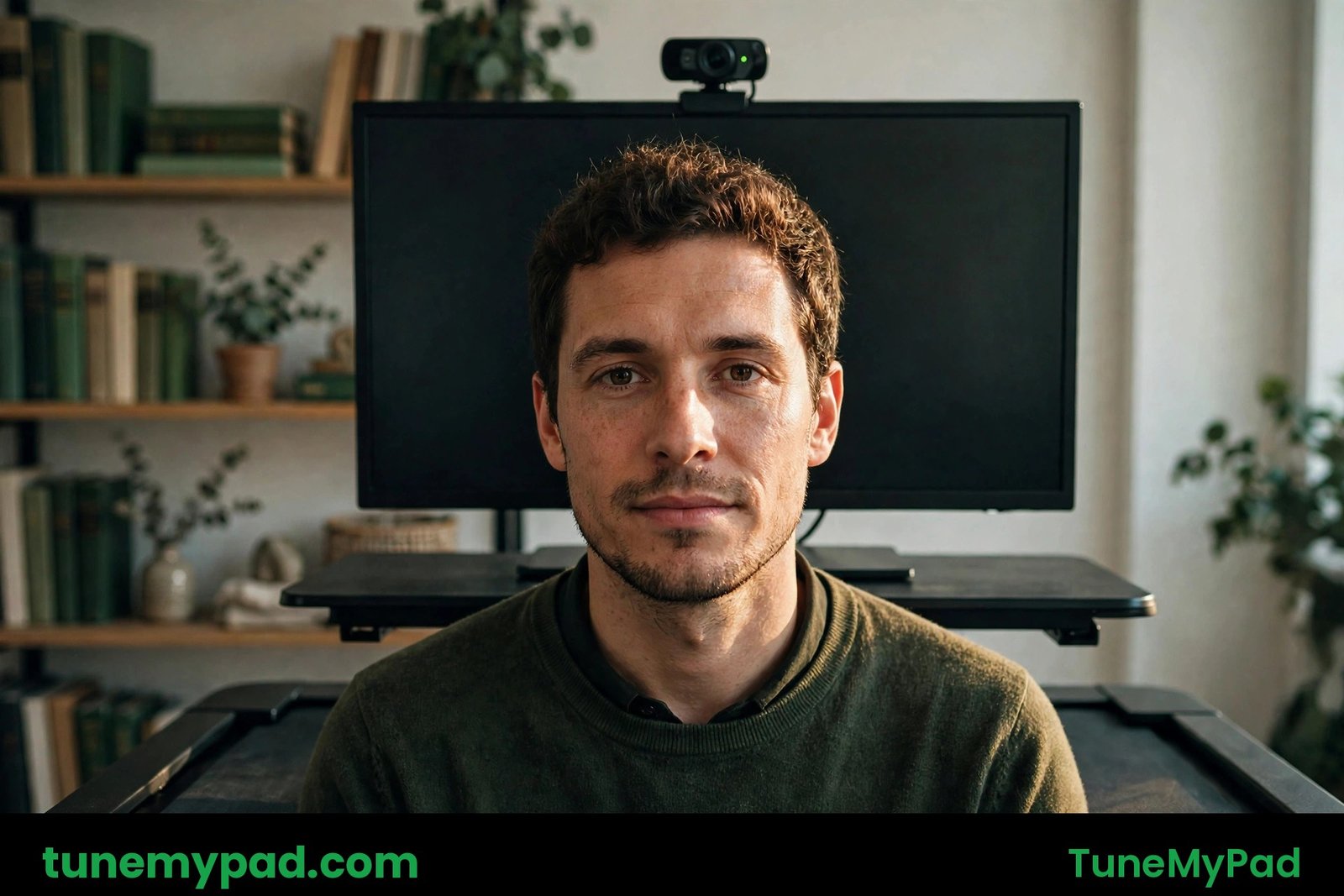
When using a treadmill desk on video calls, the camera matters more than anything else. A walking body in front of a shaking camera looks chaotic; the same body in front of a stable camera looks… seated. Seriously. A rock-steady frame with only your shoulders visible reads as “person at a desk” even while you walk.
- Never use the laptop webcam for walking calls. Laptop lids vibrate with every footfall. Use an external webcam mounted on your external monitor, or better, a small tripod on the desk behind the monitor. The monitor’s mass damps vibration.
- Frame chest-up, not face-only. A tight face crop amplifies every bob; a chest-up frame gives the motion room to be imperceptible. Keep your head in the top third with a little headroom.
- Lock the camera down. Even a monitor-mounted webcam benefits from a dab of damping: a small beanbag or foam pad under a tripod kills residual vibration. Do not rely on software stabilization alone — it crops your frame and can create a jelly effect that looks worse.
- Eye level, always. Stack the camera so the lens sits at or slightly above eye level. Looking down into a low camera while walking reads as distracted; eye-level reads as engaged.
Test it: record a 30-second clip at your normal walking speed and watch it back. If you cannot tell you are walking, your camera setup for using a treadmill desk on video calls is done.
Tip 2: Fix Your Audio Before Anyone Complains
Audio is where using a treadmill desk on video calls usually fails first. You cannot see the problem, so you keep walking while colleagues quietly put you on mute in their minds.
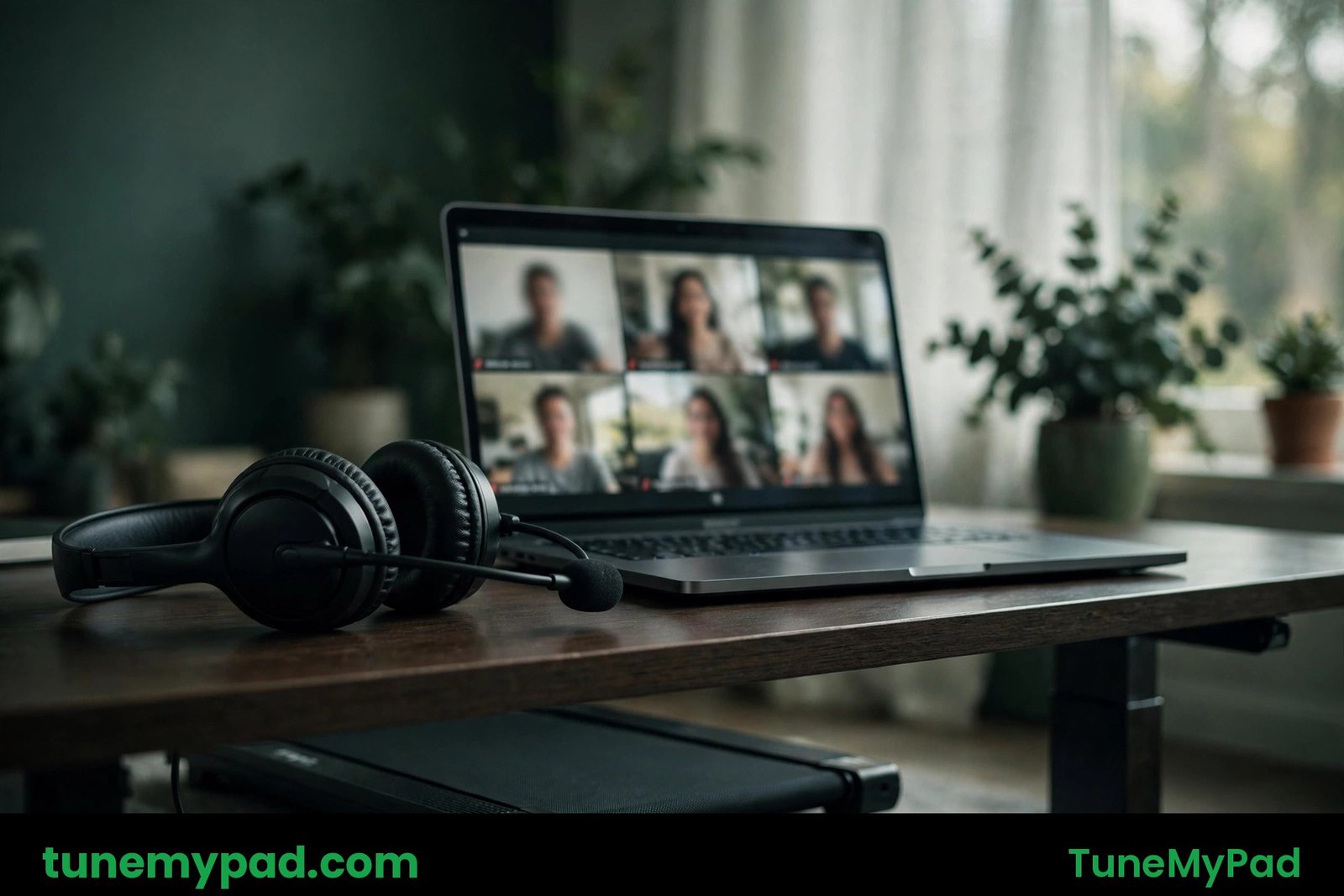
- Use a headset mic or a boom mic, not the laptop mic. A microphone inches from your mouth captures your voice at high signal-to-noise; the treadmill hum becomes a negligible floor. Earbuds with a boom or a lightweight headset are the walking worker’s standard kit.
- Turn on AI noise suppression. Zoom, Teams, and Meet all have built-in noise removal now — set it to the highest level for walking calls. It strips motor hum and footfall thumps remarkably well.
- Mind your room. Hard floors and bare walls reflect belt noise into the mic. A rug under the treadmill (which also damps vibration) and soft furnishings make a bigger audio difference than a pricier mic.
- Do a test recording. Record yourself reading a paragraph at walking speed, then listen on earbuds. If you hear rhythmic thumping, your belt may need lubrication or your desk needs damping — see our guide to a quieter treadmill desk.
The bar for using a treadmill desk on video calls audio: if a colleague listening on laptop speakers cannot identify any unusual sound, you pass.
Tip 3: Walk Slower on Calls Than Between Them
Your between-meetings walking pace and your on-camera pace should differ. Using a treadmill desk on video calls at 2.5 mph looks and sounds different from 1 mph — faster steps mean more head bob, harder breathing, and more belt noise.
- Cap call speed at 1–1.5 mph. At 1 mph the motion is nearly invisible on a stable camera and your breathing stays conversational. You still bank roughly 2,000 steps per hour of calls.
- Slow down further when you are speaking. Listening tolerates more motion than talking. When it is your turn to present a point, drop to 0.5 mph or pause briefly — your voice steadies and your arguments land harder.
- Use speed presets. Most walking pad remotes and apps let you jump to preset speeds. Program a “call speed” (1.0 mph) and a “work speed” (1.8 mph) so switching is one tap, not a fumble mid-sentence.
This is the core discipline of using a treadmill desk on video calls: the belt is a dial you turn with the social context, not a fixed setting.
Tip 4: Know Exactly When to Pause the Belt
Walking through every call is a flex, not a strategy. Part of mastering using a treadmill desk on video calls is knowing when stillness serves you better:
- Pause for presentations you deliver. Presenting demands authority. Standing still for your 10-minute section, then resuming the walk for discussion, is the professional move.
- Pause for interviews and reviews. Job interviews, performance reviews, salary talks, and client pitches — any high-stakes conversation deserves your full physical presence.
- Pause when you need to think hard. Rapid calculations, live problem-solving on a shared screen, debugging together — cognitive load plus motor load equals worse performance. Stop walking, solve it, resume.
- Pause when tech misbehaves. If audio glitches or the camera freezes, eliminate variables: stop the belt first, then troubleshoot.
The pause habit protects both your reputation and your step count — you walk more overall because you never have a disastrous call that makes you dread using a treadmill desk on video calls again.
Tip 5: Control Your Background and Lighting
Walking adds motion to your frame; a chaotic background multiplies the distraction. Using a treadmill desk on video calls professionally means the only interesting thing in your frame is you.
- Use a real, tidy background. A blurred or virtual background plus body motion can create edge artifacts that draw the eye. A clean real wall, bookshelf, or curtain is calmer.
- Light your face, not your screen. A simple key light (window or ring light) at face level keeps you clearly visible. Backlight from a window behind you turns you into a silhouette — worse while walking because the silhouette wobbles.
- Keep the treadmill out of frame. Frame chest-up so the belt, handrails, and desk edge never appear. Nobody needs to see the hardware for using a treadmill desk on video calls to feel normal.
- Check the reflection. Glasses, glossy monitors, and windows behind you can reveal the treadmill in reflections. Do a test recording and scan the frame like a detective.
Tip 6: Master Walking Body Language
Even with perfect tech, your body tells the walking story. Using a treadmill desk on video calls like a pro means managing the small physical tells:
- Keep your gaze on the camera lens, not on your own video or a second monitor, especially when speaking. The natural walking urge is to look around; resist it on camera.
- Gesture less, nod more. Big hand gestures amplify with body motion and can look erratic. Small, deliberate nods read as engaged and are motion-proof.
- Keep shoulders level. Walkers tend to hunch toward the screen over time. Check your posture at the top of each hour — shoulders back, chin level.
- Smile a touch more than feels natural. Walking can flatten your resting expression into a focused grimace. A slight smile compensates and reads as warmth on camera.
None of this is acting; it is just translating your normal attentiveness into a medium that exaggerates motion. After two weeks of using a treadmill desk on video calls, it becomes automatic.
Tip 7: Tune Your Software Settings for Walking Calls
The last layer of using a treadmill desk on video calls is configuration — five minutes per app, done once:
- Noise suppression to maximum. Zoom: Settings → Audio → Suppress background noise → High. Teams: Settings → Devices → Noise suppression → High. Meet: Settings → Audio → Noise cancellation on.
- Enable “Touch up my appearance” / soft-focus. Zoom and Meet offer subtle smoothing that forgives the micro-blur of motion. Keep it subtle — heavy filters look odd.
- Set a default camera preset. If your webcam app supports presets, save your walking framing so every call starts correctly framed even if you bump the camera.
- Use push-to-talk discipline in big meetings. Mute by default in large calls; unmute to speak. This is good etiquette anyway, and it hides every treadmill sound completely. A dedicated mute hotkey or a headset mute button makes it frictionless.
- Turn off “mirror my video” checks. While setting up, verify your framing in a test meeting rather than staring at your own preview during the call — self-view watching is distracting and reads as vanity.
Etiquette: Should You Tell Colleagues You Are Walking?
The social question behind using a treadmill desk on video calls is not technical — it is cultural. Guidance from walking workers who have done this for years:
- Mention it once, casually. “Heads up, I’m on my walking desk today, so if I look slightly in motion that’s why.” Said once to regular collaborators, it normalizes the setup. Never announce it to a client on a first call.
- Do not perform wellness. The fastest way to annoy colleagues is turning your step count into a personality. Walk; do not preach. Nobody wants a step-count update in standup.
- Respect call types. Walking through a brainstorm is energizing; walking through a colleague’s bad news or a layoff announcement is tone-deaf. Read the room — literally pause the belt when the emotional register rises. Our shared-office etiquette guide covers the broader social rules.
- Watch for resentment cues. If someone jokes about your setup twice, that is feedback. Ask directly: “Does the walking distract you on calls?” Most of the time the answer is no — but asking builds trust.
Handled well, using a treadmill desk on video calls becomes a non-topic within a month. Handled loudly, it becomes your identity. Choose non-topic.
Troubleshooting: Common Video-Call Problems for Walkers
Even dialed-in setups hit snags. Quick fixes for the most common using a treadmill desk on video calls complaints:
| Symptom | Likely cause | Fix |
|---|---|---|
| Colleagues hear a low hum | Belt noise in mic | Headset mic + max noise suppression; lubricate belt |
| Video looks shaky | Camera on laptop lid or loose mount | External camera on monitor or tripod; add foam damping |
| You sound out of breath | Speed too high for speaking | Drop to 1 mph; pause the belt for long speaking turns |
| Background blur flickers around you | Virtual background + motion | Switch to a real, tidy background |
| People say you look distracted | Eyes on self-view or second monitor | Full-screen the call; look at the lens when speaking |
| Echo or double audio | Speakers + mic both active | Use headset; never combine speakers with an open mic |
Key Takeaways: Using a Treadmill Desk on Video Calls
Mastering using a treadmill desk on video calls comes down to this:
- Stabilize the camera first. External webcam on the monitor or a damped tripod, chest-up framing, eye level — this single change hides 90% of walking motion.
- Fix audio with a headset mic and maximum noise suppression. The laptop mic is the enemy of using a treadmill desk on video calls.
- Walk at 1–1.5 mph on calls — slower than your between-meeting pace — and slower still when you are the one talking.
- Pause the belt for presentations, interviews, reviews, and hard thinking. Strategic stillness is professionalism, not surrender.
- Control background and lighting: real tidy background, face lit, treadmill out of frame.
- Manage body language: camera-lens gaze, small nods, level shoulders, a touch more smile.
- Tune software once: max noise suppression, subtle touch-up, mute-by-default in big meetings.
- Mention the walking once, then let it disappear. The goal of using a treadmill desk on video calls is for nobody to think about it at all.
Frequently Asked Questions
Is it unprofessional to walk during video calls?
No — as long as nobody can tell. Professionalism on video calls is judged by stability, audio clarity, and attentiveness, not by whether your legs are moving. Once your camera and mic setup is right, using a treadmill desk on video calls is indistinguishable from sitting. The unprofessional version is a shaky, noisy feed — and that is a setup problem, not a walking problem.
What is the best microphone for using a treadmill desk on video calls?
A lightweight headset with a noise-canceling boom mic is the best all-rounder: it keeps the mic at a fixed distance from your mouth regardless of body motion and rejects treadmill hum. Good earbuds with a boom or stem mic are a close second. Avoid desk-mounted condenser mics — they pick up every vibration through the desk surface.
Can you use a treadmill desk on video calls at 2 mph or faster?
You can, but quality degrades. Above ~1.5 mph most people show visible head bob, breathe audibly when speaking, and generate more belt noise. Save 2+ mph for camera-off calls and solo work. The professional standard for using a treadmill desk on video calls with video on is 1–1.5 mph.
Should I keep my camera on while walking on calls?
Yes, when the setup is right — camera-on builds trust and presence, and walking does not change that. If your setup is not yet dialed in (shaky video, bad audio), keep the camera off while you fix it rather than broadcasting a distracting feed. Fix the setup; do not abandon the camera.
How do I hide treadmill noise on Zoom specifically?
Three layers: a headset mic (hardware), Zoom’s noise suppression set to High (software), and a maintained belt (source). Together they make using a treadmill desk on video calls on Zoom silent in practice. If hum persists, check whether your belt needs lubrication — a dry belt is dramatically louder.
Do I need to tell my boss I walk during video calls?
You do not need permission to walk any more than you need permission to stand — but one casual mention avoids surprises. “I use a walking desk most of the day” said once in a 1:1 is enough. If your role involves constant high-stakes video, discuss expectations openly rather than hoping nobody notices.
What if my company culture frowns on walking during meetings?
Read the culture honestly. In some formal environments, any visible motion reads as unserious. Options: walk camera-off, walk only in internal calls, or pause for the calls that matter and walk between them. Using a treadmill desk on video calls should never cost you political capital — the steps are not worth the perception risk in a culture that is not ready.
Can I present slides while walking on a treadmill desk?
Short sections, yes — but pause for the important parts. Walking while screen-sharing a deck is fine for walkthroughs and demos. For the opening, the close, and any persuasive moment, stop the belt and stand still. Your voice, pacing, and authority all improve when your body is still.
Why do I feel dizzy looking at the screen while walking on calls?
Screen-induced motion mismatch: your eyes track a static screen while your body moves. Slow the belt, look up at the camera periodically instead of staring at the screen, and make sure your monitor is at eye level and arm’s length. Persistent dizziness deserves attention — our guide on dizziness after treadmill desk sessions covers the vestibular side in depth.
Is walking during video calls actually productive?
For listening-heavy calls, yes — many walkers report better focus and less meeting fatigue. For calls where you do most of the talking or thinking, walking is neutral to slightly negative. The productive pattern for using a treadmill desk on video calls is: walk through status updates and 1:1s, pause for presentations and problem-solving.
Conclusion
Using a treadmill desk on video calls is a solved problem — stable camera, headset mic, slower pace, strategic pauses, tidy background, and one casual mention to colleagues. None of it is expensive or complicated; it is just a checklist you run once and then forget.
The payoff is real: hours of calls become hours of movement. Meeting-heavy days, which used to be the enemy of the walking desk, become its best friend. Set up the camera, fix the audio, cap the speed, and using a treadmill desk on video calls stops being something you manage and starts being something you simply do — while everyone else sits still and wonders why their afternoons feel so long.